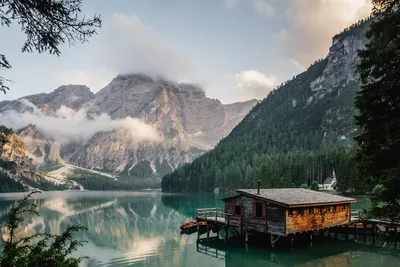
A layout may need a subject facing the opposite way, or a scan may need its top and bottom reversed. Mirroring changes the placement of pixels across an axis. Use the preview to confirm that text and asymmetric details still make sense.
Mirror an image in three steps
The editor accepts one JPG, PNG or WebP within 15 MiB and 40 megapixels. Horizontal mirroring is enabled initially so the sample demonstrates a visible change.
Choose an image or load the sample.
Enable horizontal mirroring to swap left and right, or vertical flipping to swap top and bottom.
Choose the output format, process the image and download the result after checking the preview.
Horizontal versus vertical flipping
Horizontal mirroring reverses left and right. It can also make letters, signs or logos read backward, so inspect them carefully. Vertical flipping swaps top and bottom without making a quarter-turn.
Enabling both axes produces the same geometric orientation as a 180-degree turn. The editor keeps the original pixel dimensions. If you need a 90-degree turn, use Rotate image instead.
Transparency and output format
PNG and WebP can retain transparent regions. JPG cannot store alpha transparency, so this tool adds a white background before JPEG export. Flipping does not remove an existing solid background.
A JPG or WebP is encoded again at the chosen quality. PNG avoids a lossy quality setting, but the bytes can still differ because of encoding and metadata. Newly exported images do not copy EXIF or GPS; keep the original.
Check the image where it will be used
A self-view in a camera app may already be mirrored. Check the saved image in the actual destination before deciding whether another flip is necessary. A preview in one app can differ from what a recipient sees.
The tool edits one still image and does not preserve animated frames. The original file is not overwritten. Download a separate copy and keep the source if you may need to reverse or combine edits later.
Frequently asked questions
Is flipping the same as rotating?+
No. A horizontal flip mirrors left and right, while rotation turns the entire image. Combining both flip axes is geometrically equivalent to a 180-degree turn.
Will a horizontal flip reverse text?+
Yes. Letters and signs are mirrored too. Review readable text before using the image.
Can I remove the background by flipping?+
No. Flipping changes pixel positions. It does not remove a background or create new transparency.
Flip an image
Try the sample first, then process your images. Compare the result and keep the original for future editing.
Flip an imageRelated image guides
This guide is currently available in English. The general HEIC guide is available in 13 languages.